
Plugins
Replay interfaces, stats tools and streaming utilities for Heroes of the Storm, with installation guides.
Ahli's Observer
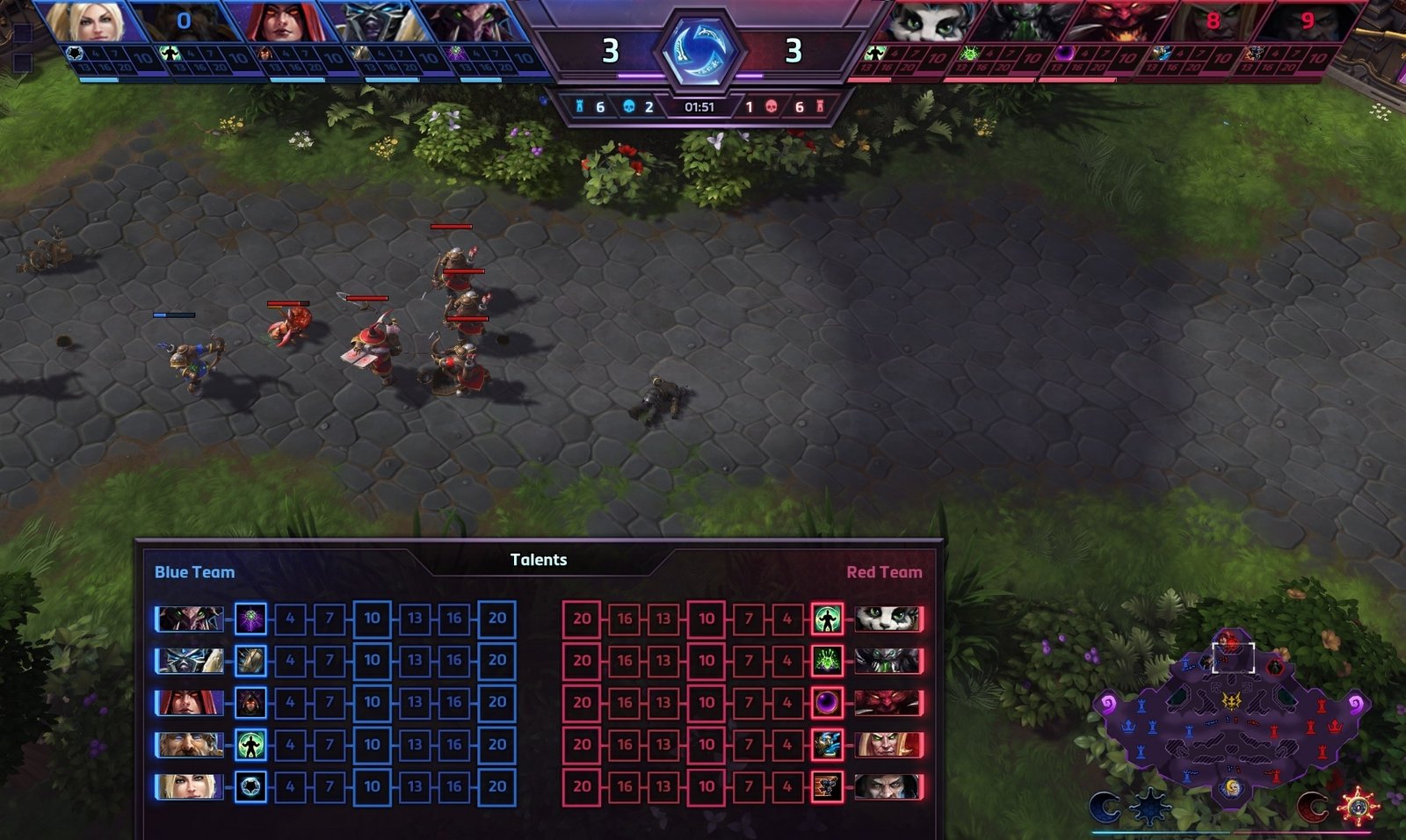
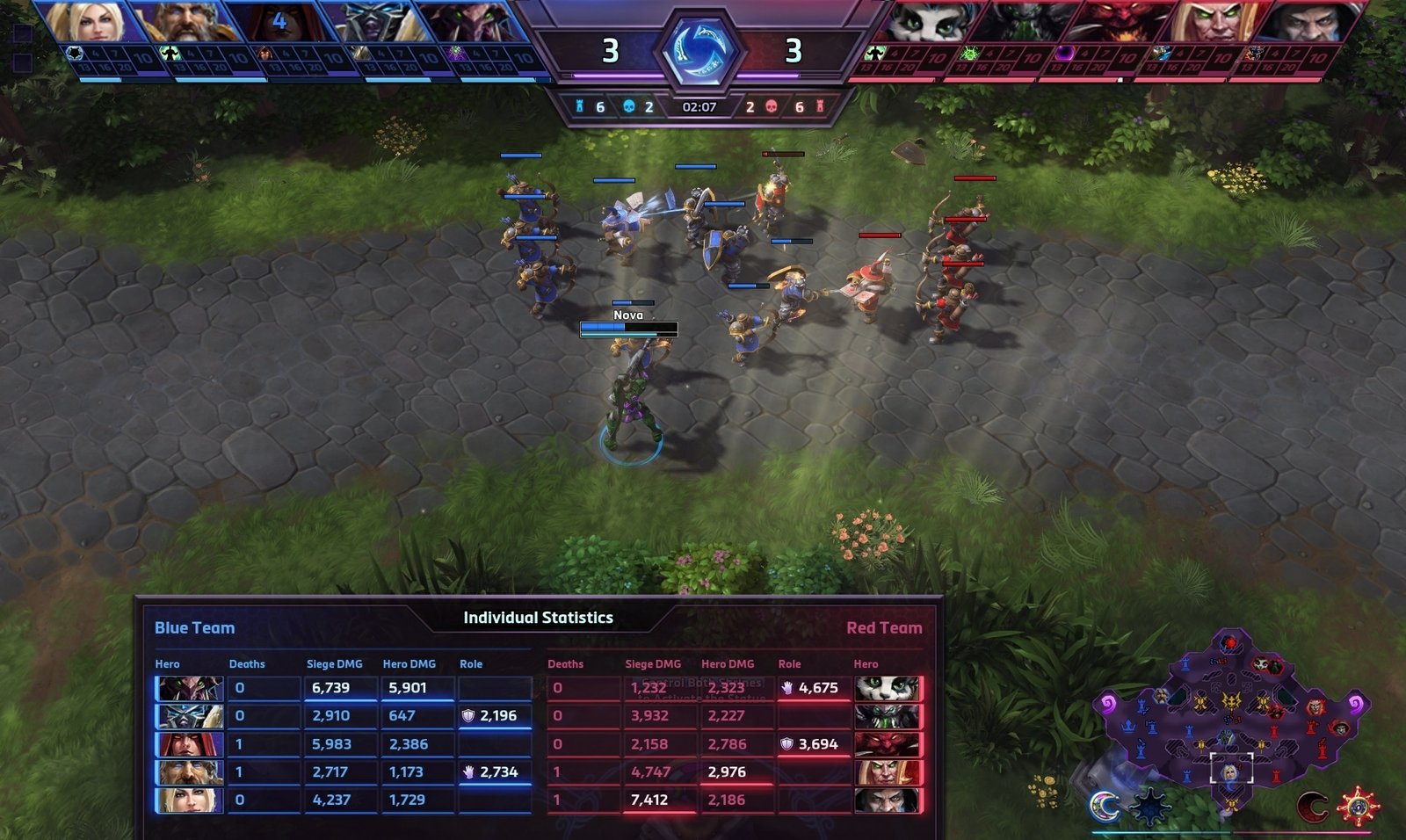
The most widely used observer interface in the competitive scene, used by Blizzard itself in official championships. It replaces the default replay UI with real-time panels for team stats, talents, damage, deaths, APM and crowd control.
What it does
- Side-by-side talent panel for all 10 players
- Live hero damage, siege damage, healing and damage taken
- Experience breakdown (minions, structures, heroes, camps)
- APM, time spent dead and crowd control stats
- Editable map score (great for Bo3/Bo5 series)
- Minimal mode and hidden UI for clean footage
How to install
- Close the game.
- Copy the AhliObs-0.75.StormInterface file to
%USERPROFILE%\Documents\Heroes of the Storm\Interfaces(Mac:~/Library/Application Support/Blizzard/Heroes of the Storm/Interfaces). Create the Interfaces folder if it doesn't exist. - Open the game → Options → Observer and Replay → under Observer Interface select AhliObs and confirm.
- Open any replay (or join a custom game as an observer) and use the shortcuts below.
Video
GENERAL
| Action | Key |
|---|---|
| Toggle Minimal Mode | Ctrl + Alt + K |
| Toggle Unit Details | Ctrl + C |
| Toggle Static UI | Ctrl + E |
| Toggle Entire UI | Ctrl + Alt + U |
TEAM INFO
| Action | Key |
|---|---|
| Toggle Talents | Ctrl + 1 |
| Toggle Deaths, Damage, Role Stats | Ctrl + 2 |
| Toggle APM | Ctrl + 3 |
| Toggle Experience Breakdown | Ctrl + 4 |
| Toggle Time Dead, Deaths, Self-Sustain | Ctrl + 5 |
| Toggle Carried Items | Ctrl + 6 |
| Toggle Kills, Deaths, Assists | Ctrl + 7 |
| Toggle Crowd Control Stats | Ctrl + 8 |
GAME INFO
| Action | Key |
|---|---|
| Toggle Map Scores | Ctrl + Shift + S |
| Increase Left Team Score | Alt + S |
| Increase Right Team Score | Alt + D |
| Decrease Left Team Score | Ctrl + Alt + S |
| Decrease Right Team Score | Ctrl + Alt + D |
Spazzo's Observer
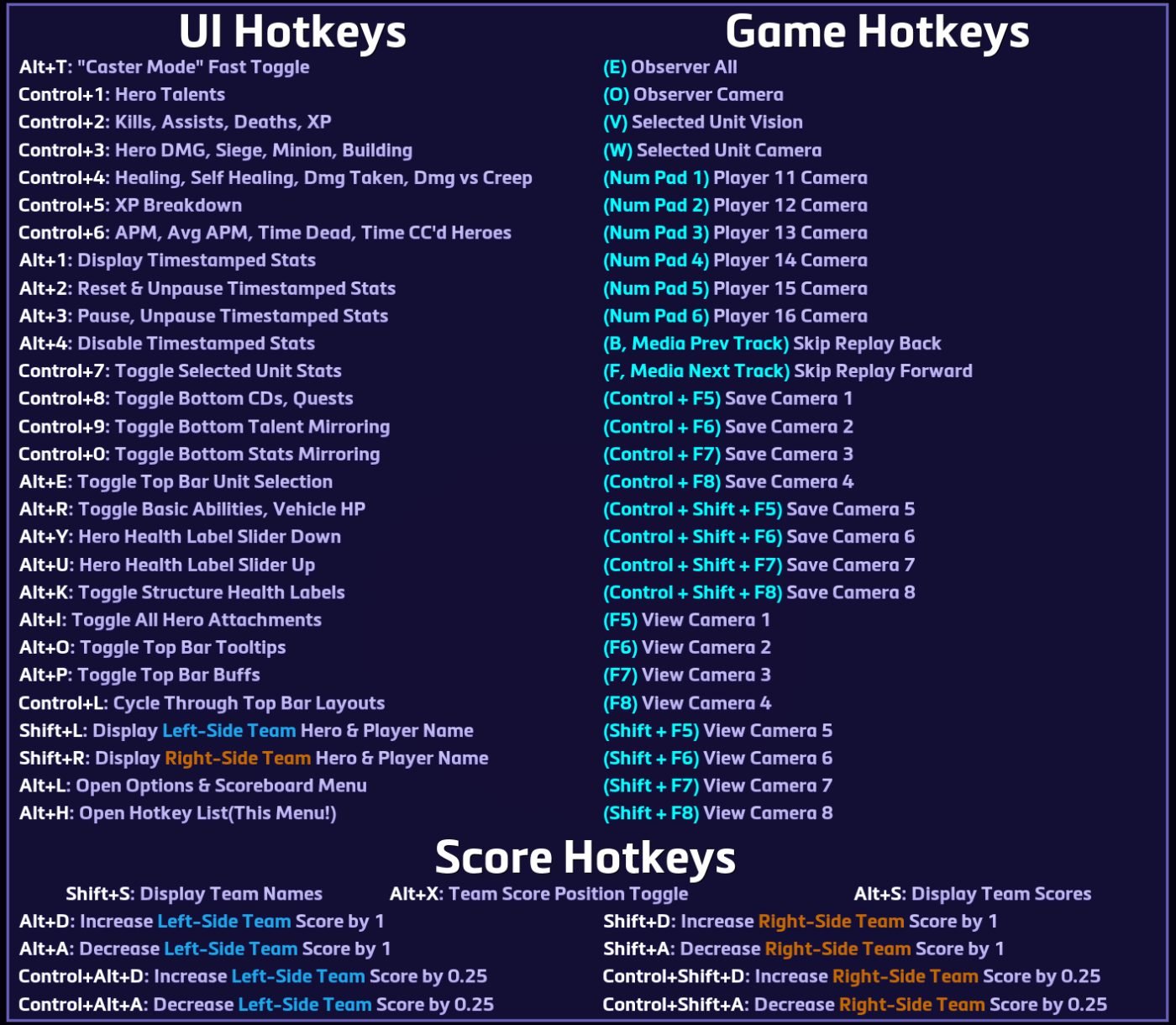
Built on Ahli's, it adds a new top bar with fountain, ability and talent cooldowns, carried objectives and a set of expanded, time-stamped replay stats so you can review every fight.
What it does
- Top bar with fountain, ability and talent cooldowns
- Cooldowns shown right on hero health bars
- Objectives carried by each player
- Expanded, timed stats (segment recording)
- Settings compatible with Ahli's editor
How to install
- Extract SpazzoObs.v036.zip.
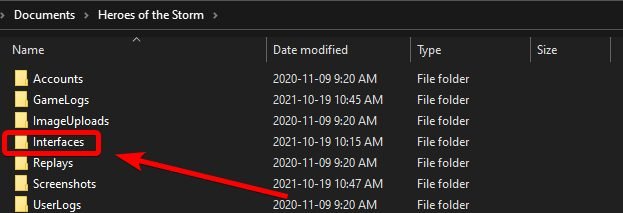
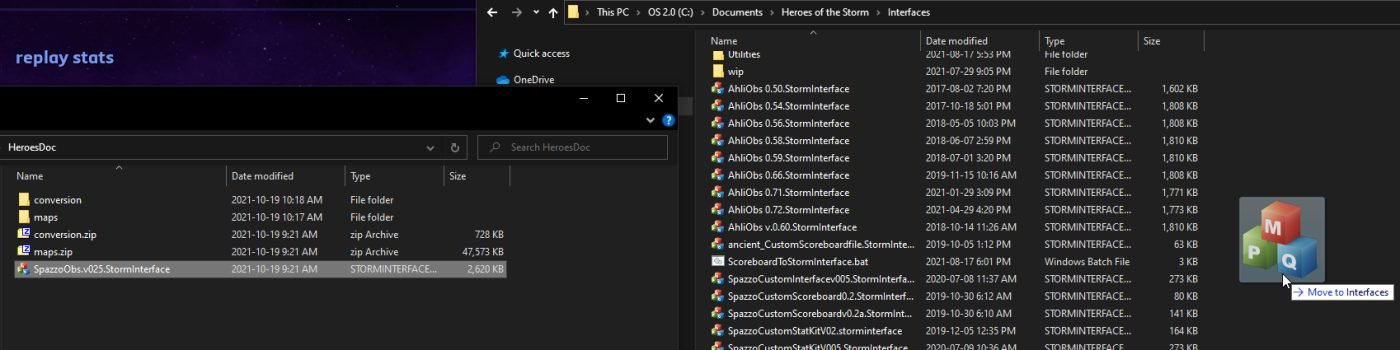
- Copy the .StormInterface file to
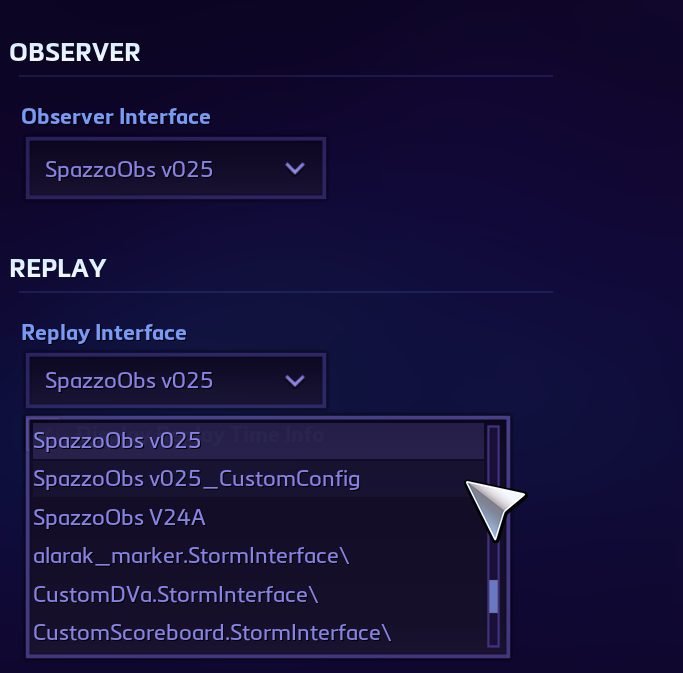
%USERPROFILE%\Documents\Heroes of the Storm\Interfaces(Mac:~/Library/Application Support/Blizzard/Heroes of the Storm/Interfaces). Create the Interfaces folder if it doesn't exist. - In game: Options → Observer and Replay → select the Spazzo interface.
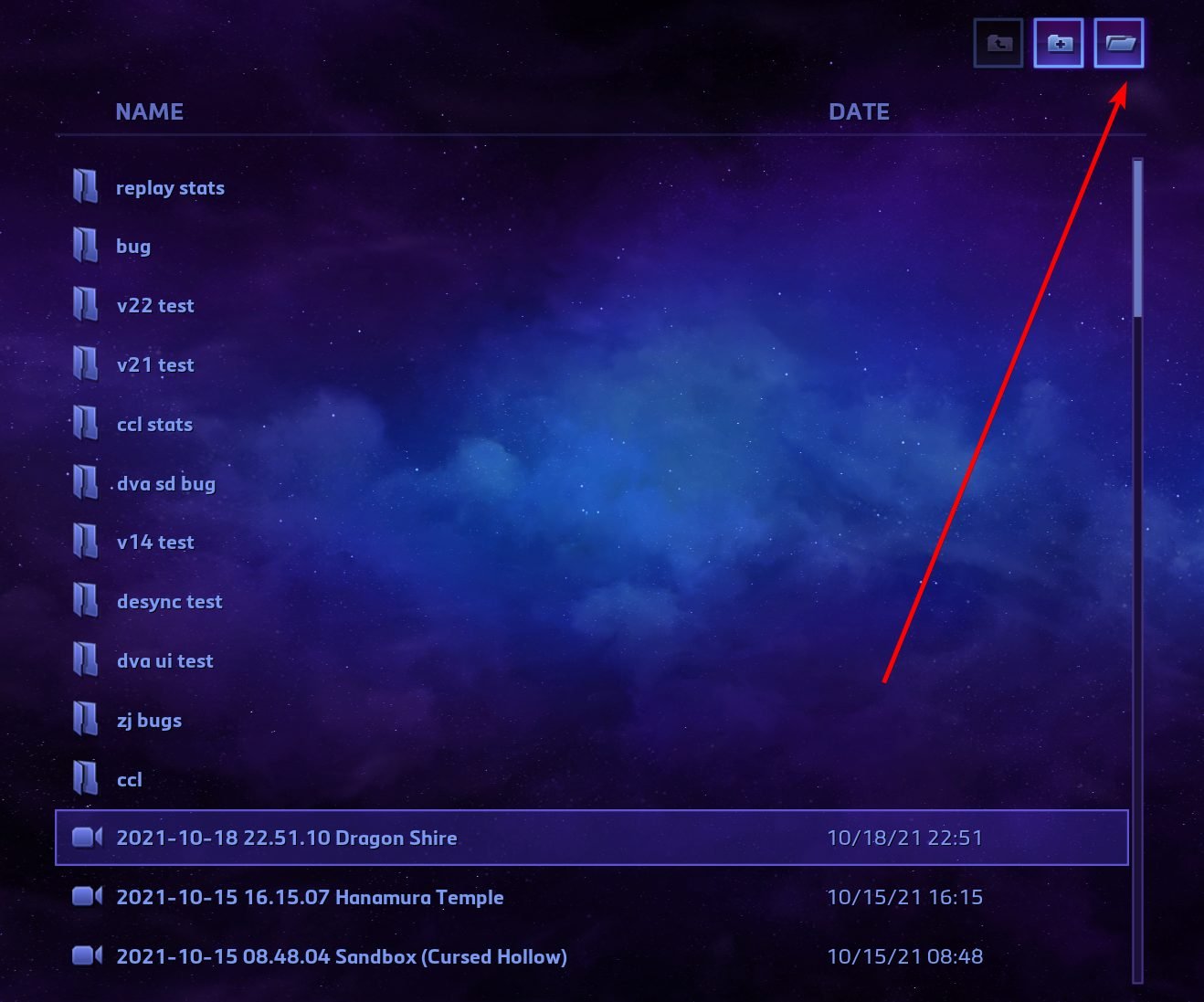
- (Optional, expanded stats) Extract maps.zip into the game's install folder. Then drag the replay file onto dragAll_details.bat and open the generated replay ending in _stats.
- (Optional) If you already used Ahli's, conversion.zip includes step-by-step instructions to import your settings.
SHORTCUTS
| Action | Key |
|---|---|
| Shortcut list (help) | Alt + H |
| Interface settings | Alt + L |
| Show recorded stats | Alt + 1 |
| Start recording stats | Alt + 2 |
| Stop recording stats | Alt + 3 |
Stats of the Storm
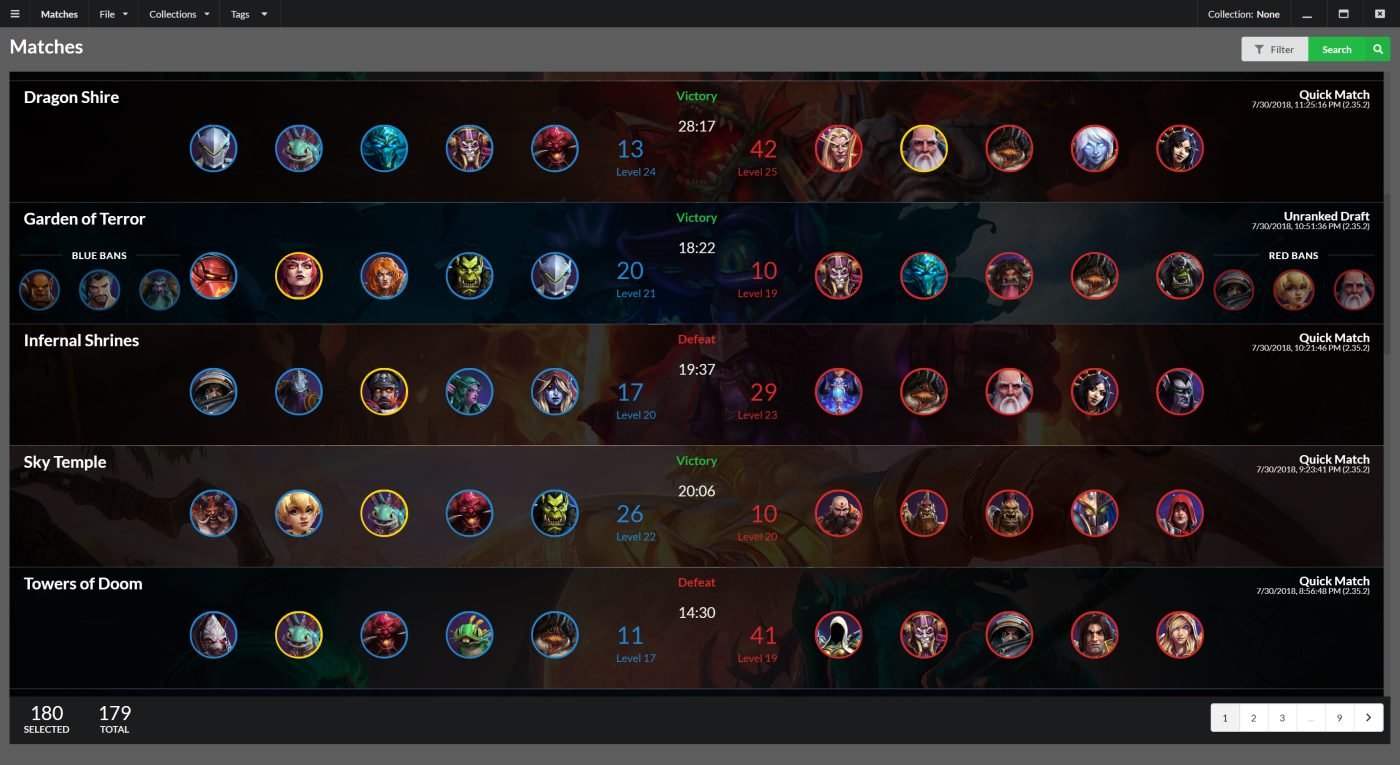
A replay analyzer that builds a local database of all your matches. It generates match, player, team and collection reports with charts, draft, timeline and export. Perfect for coaching a team or tracking your progress.
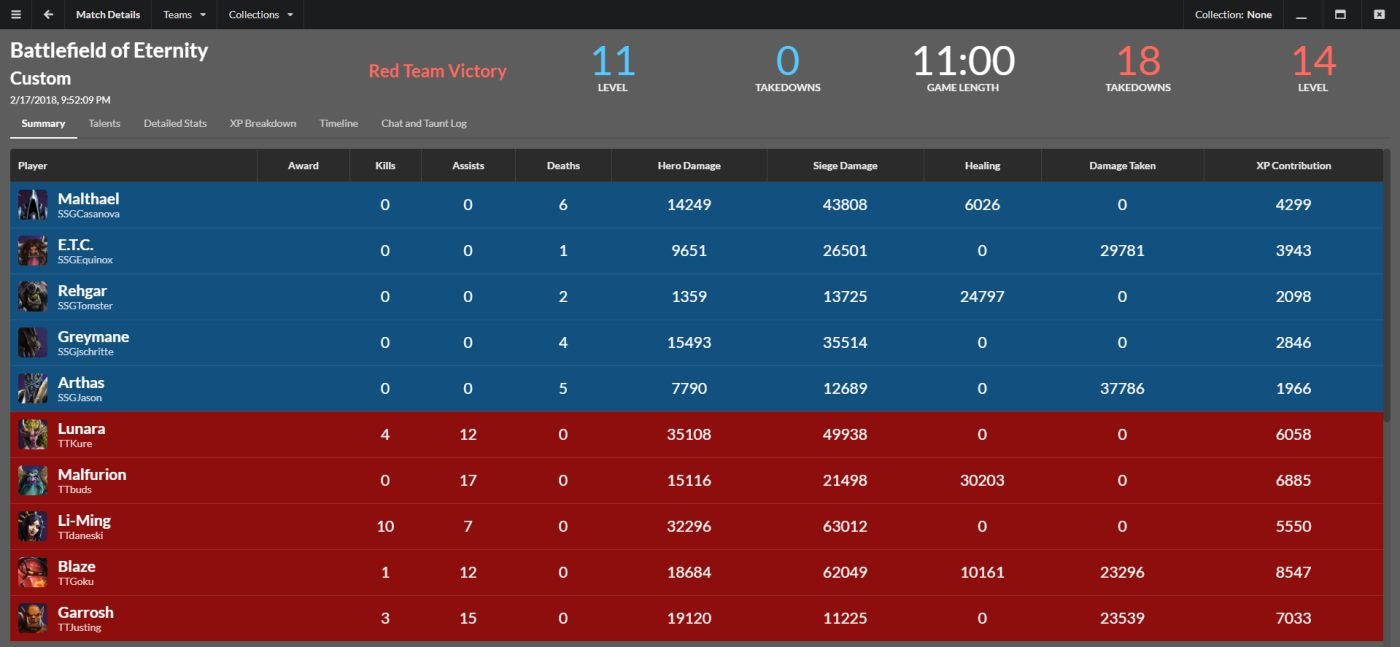
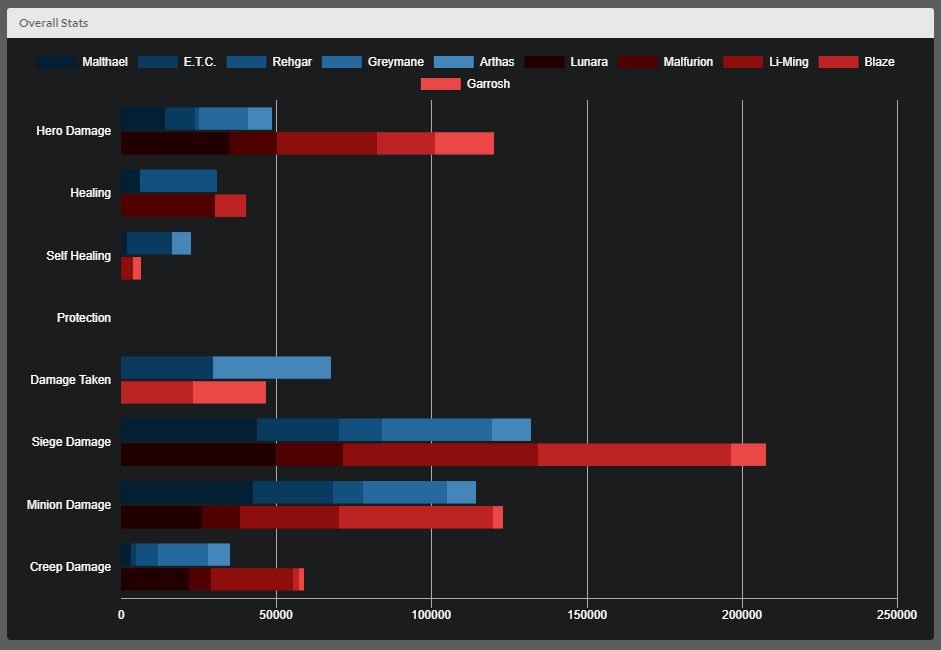
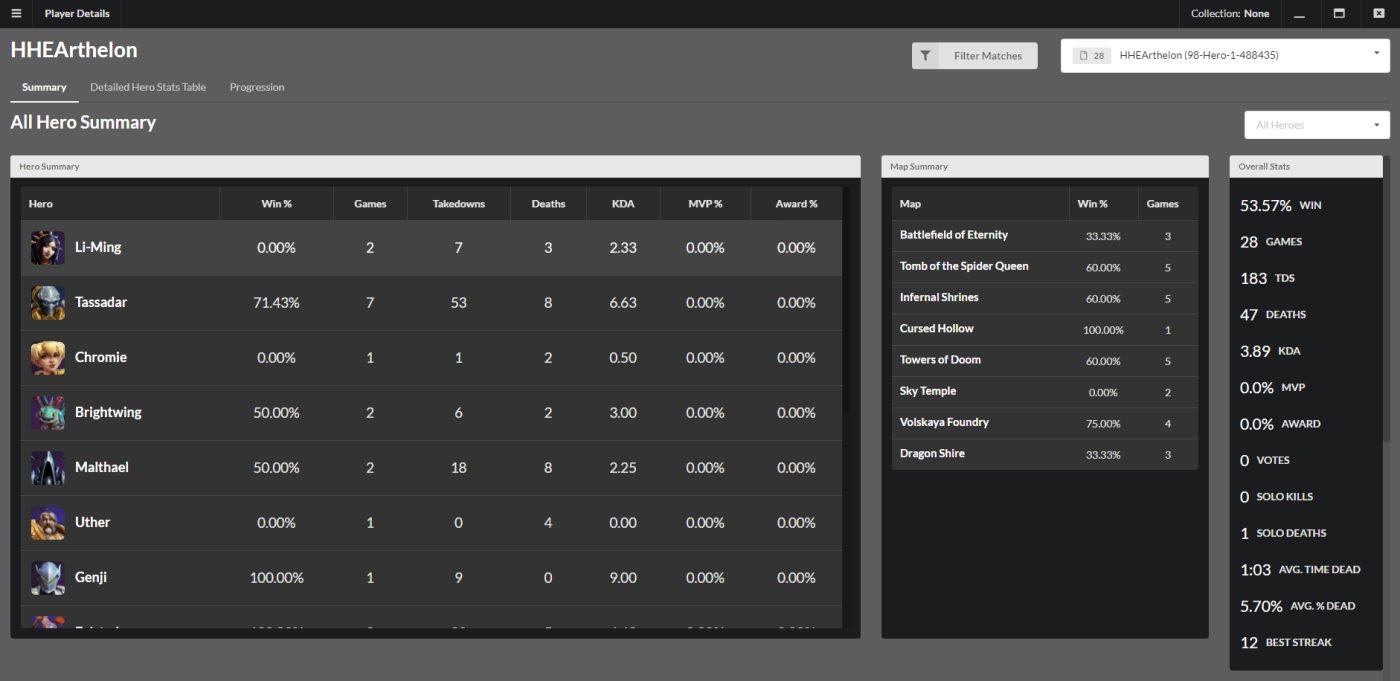
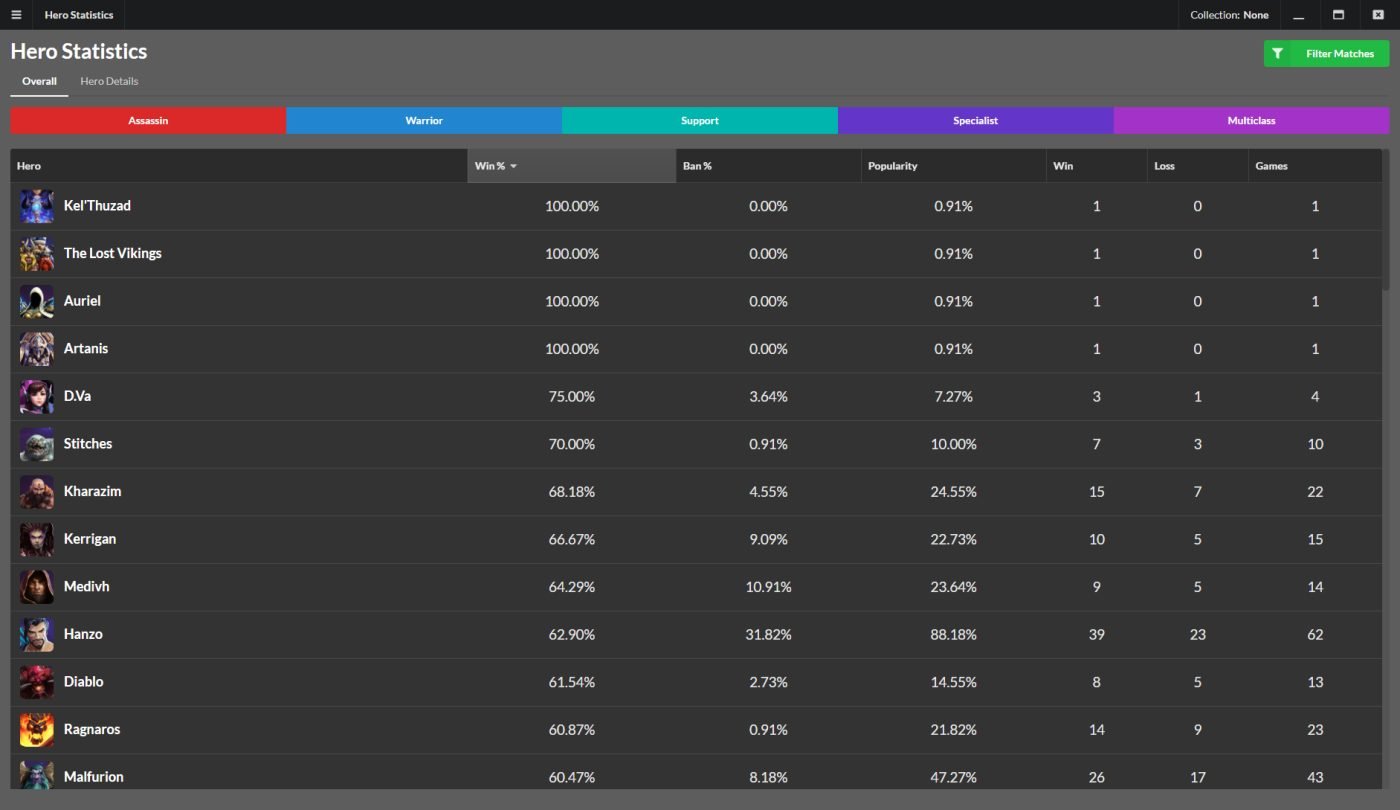
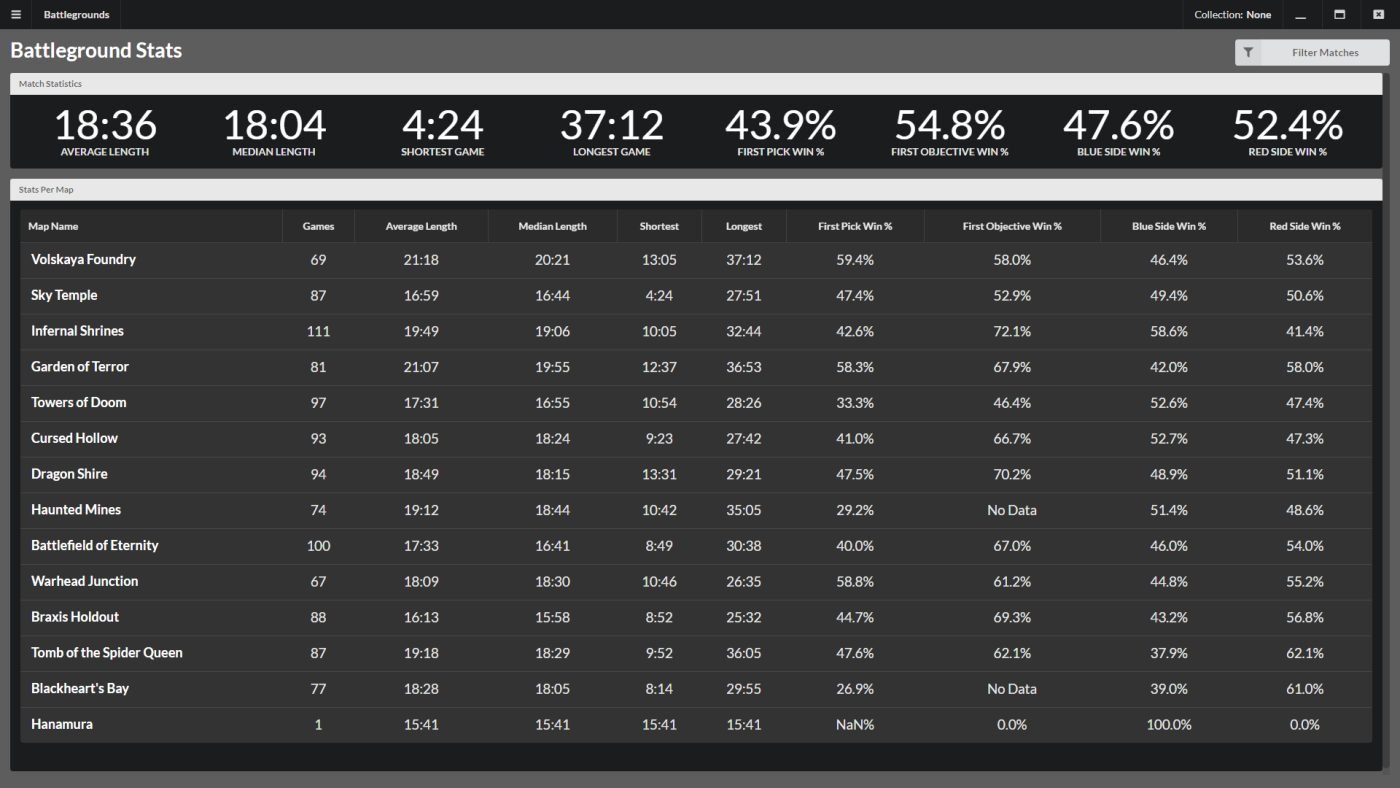
What it does
- Automatically imports your replays folder
- Match details: draft, timeline, XP, damage, healing
- Stats by player, hero, map and team
- Collections (e.g. tournament matches only) and per-patch trends
- Exports reports as PDF/JSON
How to install
- Extract the zip and run Stats of the Storm Setup. The installer isn't signed: if Windows warns you, click More info → Run anyway.
- Open the program → Menu → Settings and point it to your replays folder (usually
Documents\Heroes of the Storm\Accounts\...\Replays\Multiplayer). - Pick a start date and click Import. The first import may take a while if you have lots of replays.
- Use the Matches, Player, Teams, Maps tabs to browse the stats.
Soothsayer
A broadcast control panel: fill in names, teams, score, draft and map, and it updates your OBS overlays in real time. Used in many community tournaments.

What it does
- In-game, draft, map pick and caster frame overlays
- Player pop-ups and lower thirds with stats
- Ticker, standings and tournament bracket
- Post-game screen
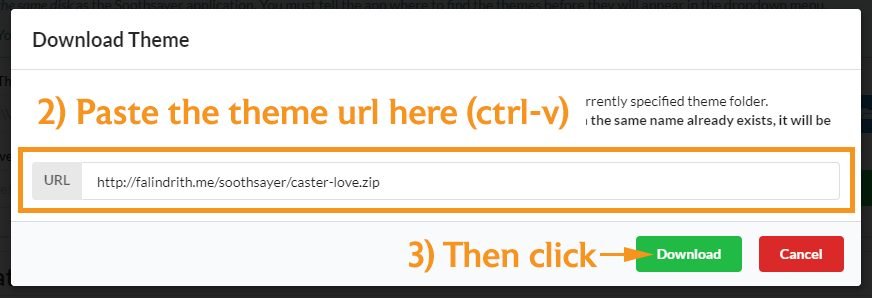
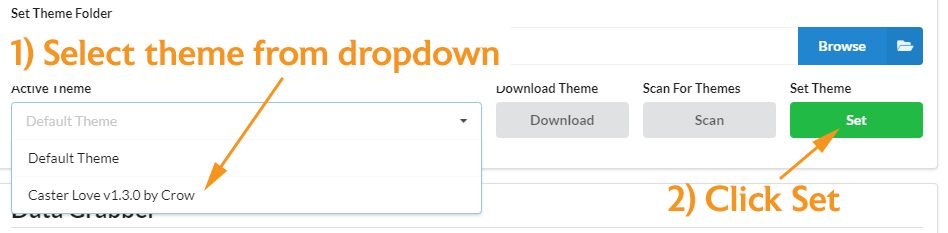
- Theme support (e.g. Caster Love)
How to install
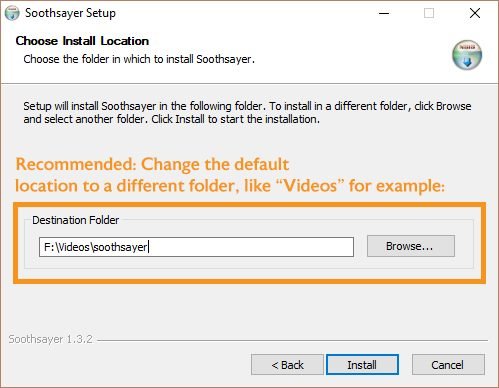
- Run the installer and install it outside Program Files (e.g. inside Videos).
- When Windows asks, allow it through the Firewall (it uses port 3005 to talk to OBS).
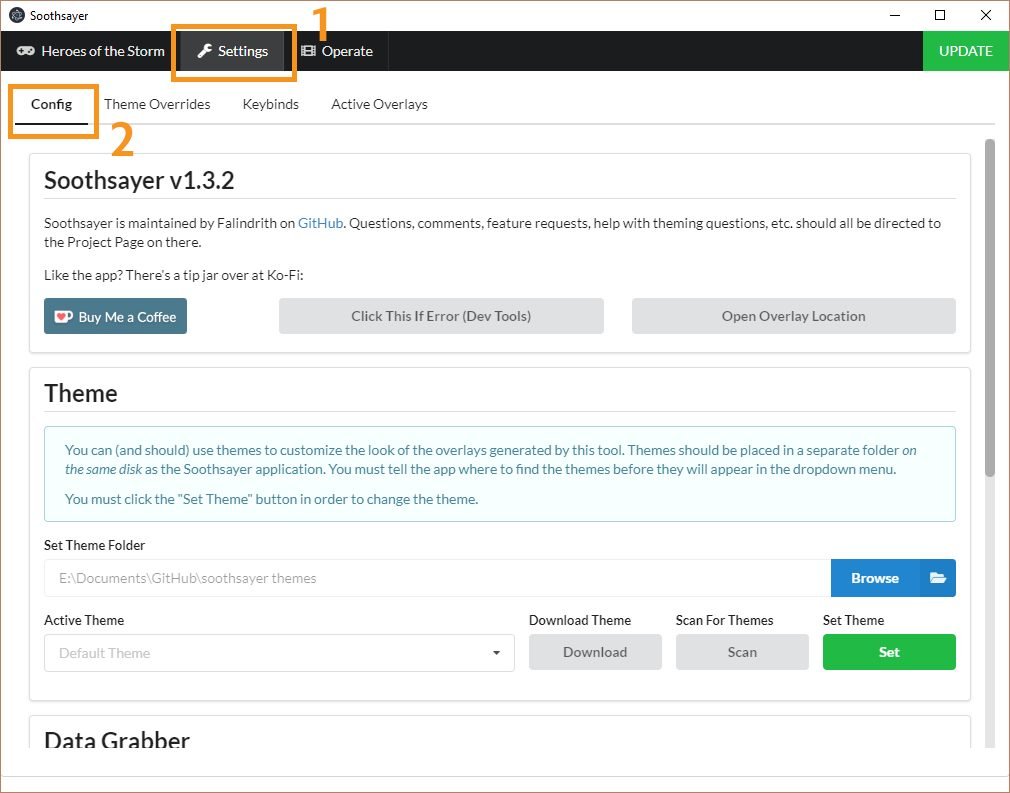
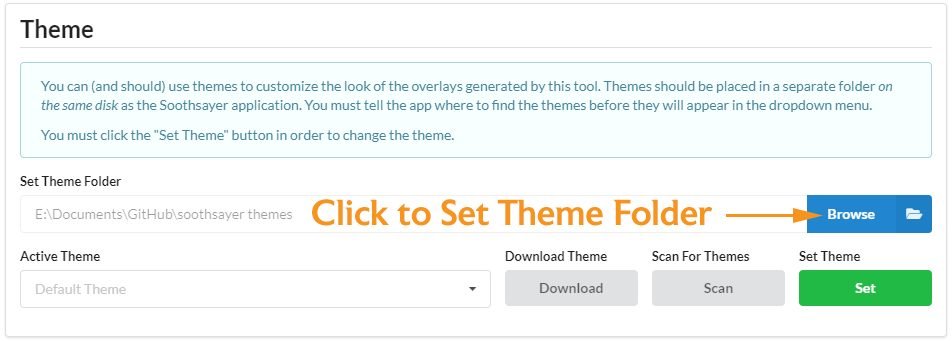
- Settings → Config: choose a themes folder on the same drive as the program.
- Extract a theme (e.g. Caster Love, in the next tab) into that folder and click Set.
- In OBS: add a Browser Source → Local file → a file from the
resources\app\src\obs_srcfolder (Open Overlay Location button). Resolution 1920x1080, no custom CSS and "refresh when active" turned off. - Always open Soothsayer before OBS.
Caster Love
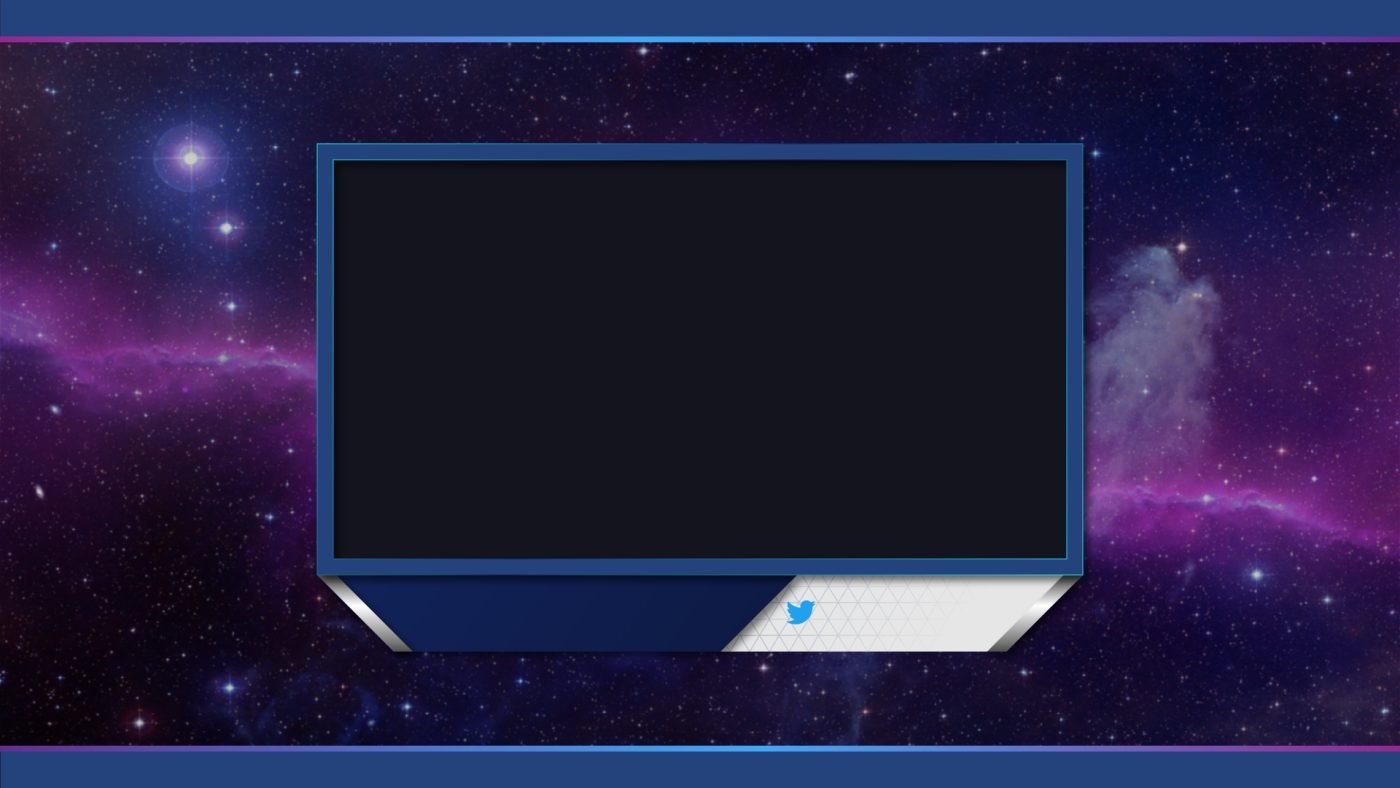
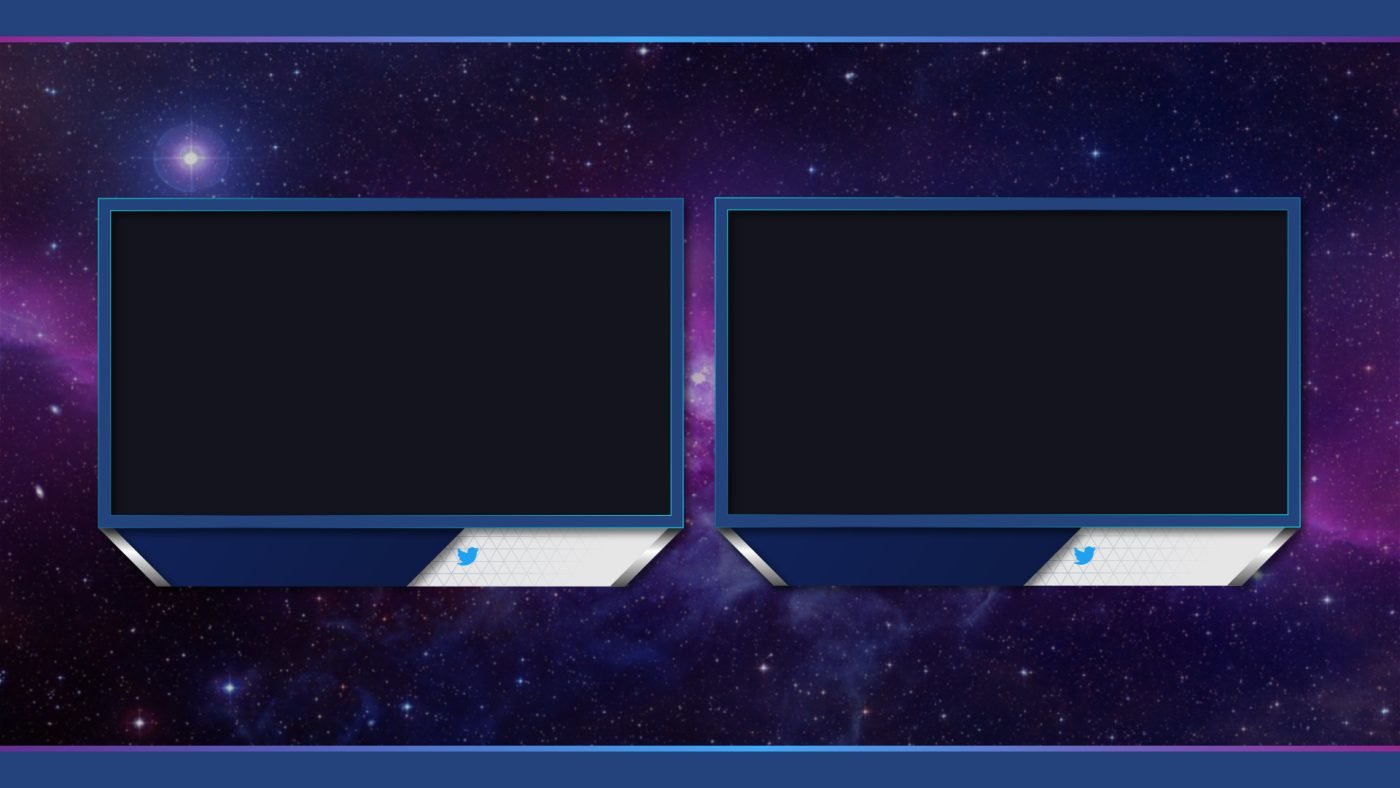
A complete visual theme for Soothsayer: draft HUD, solo and duo caster frames, lower thirds, bracket, player profile and post-game screen. Clean and stream-ready.
What it does
- Draft HUD with bans and picks
- Solo and duo caster frame (webcam)
- Player profile and lower thirds
- Post-game screen with stats
How to install
- Install and set up Soothsayer first (previous tab).
- Extract caster-love.zip into the themes folder set in Soothsayer.
- In Soothsayer: Settings → Config → select the caster-love folder and click Set.
- Refresh the browser sources in OBS.
Casc Viewer
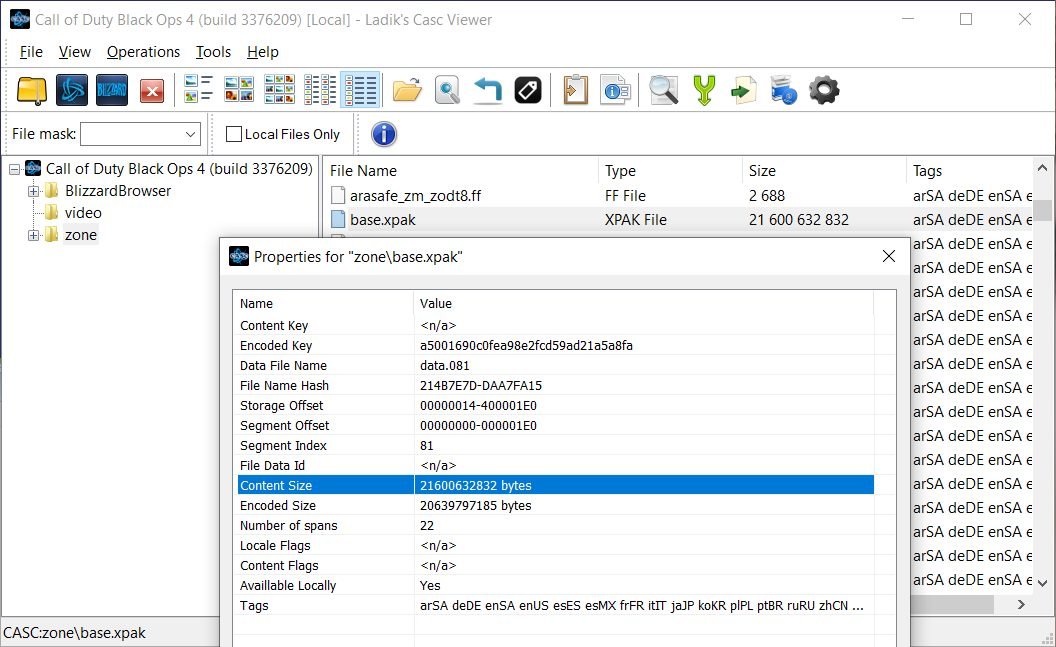
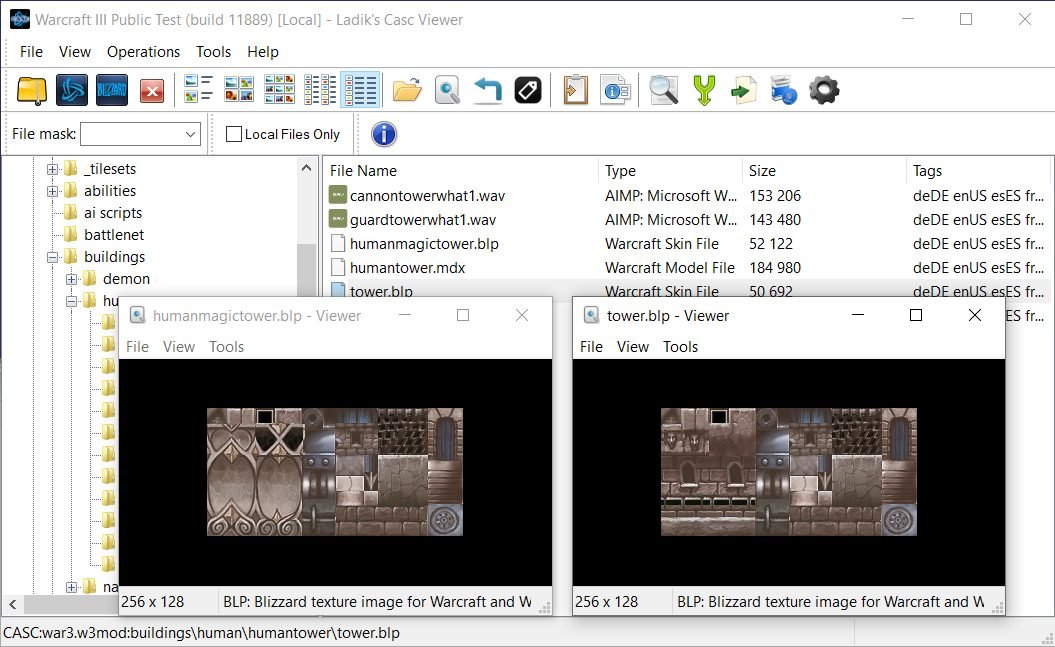
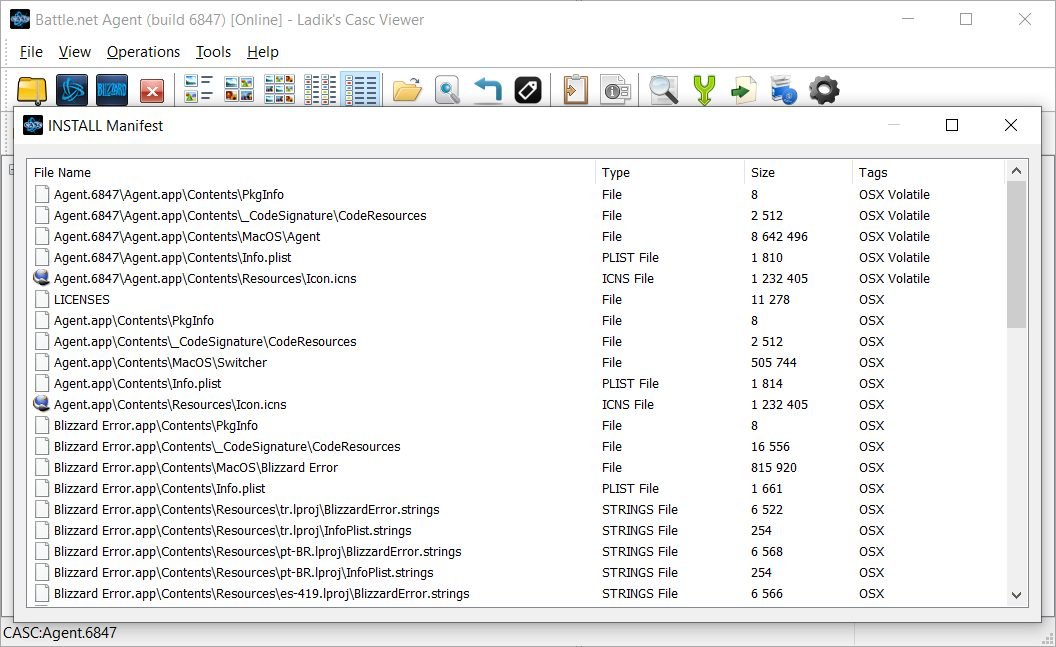
An explorer for Blizzard games' internal files (CASC format). Browse and extract Heroes icons, portraits, sounds, models and text. Popular with content creators, modders and artists.
What it does
- Browse game files just like in Explorer
- Search by file name
- Preview BLP/DDS images right in the program
- Extract files and entire folders
- Read-only: doesn't change anything in the game
How to install
- Extract CascView.zip and open CascView.exe (no install needed).
- File → Open Storage and choose the game folder, e.g.
C:\Program Files (x86)\Heroes of the Storm. - Browse or search (e.g.
storm_ui_iconfor icons), then right-click → Extract.